Building with Meson
So far we have been using Cargo and build.rs to compile our GResources.
While this works great for simple setups, it has the following limitations:
- Changes to resources trigger a Rust compilation
- No support for system integration (desktop files, icons, GSettings schemas)
- Difficult to integrate with distribution packaging systems
That’s why we will start relying on Meson. Meson is a build system used by most GNOME projects. We’ll find out how it works as we go, however you can also read this tutorial in case you want to prepare in advance. It provides:
- Dynamic GResource loading from installed locations
- Automatic installation of desktop files, icons, and GSettings schemas
- Easy integration with Flatpak and distribution packaging
- Foundation for internationalization (gettext)
In this chapter we convert our To-Do app to use Meson.
Project Structure
With Meson, we organize the To-Do app folder structure differently:
├── meson.build              # Root build configuration
├── meson.options            # Build options (e.g., profile)
├── Cargo.toml
├── src/
│   ├── meson.build          # Cargo integration
│   ├── config.rs            # App metadata via env vars
│   ├── main.rs
│   └── ...
└── data/
    ├── meson.build          # Desktop file, schema
    ├── icons/
    │   └── meson.build
    └── resources/
        ├── meson.build      # GResource compilation
        └── ...
Root meson.build
The root meson.build file is the heart of the Meson setup.
It defines variables, executes meson.build files in subdirectories and defines post-install tasks.
Filename: listings/todo/9/meson.build
# Set up the project
project('todo-9', 'rust', version: '0.1.0', meson_version: '>= 1.4')

# Import GNOME module
gnome = import('gnome')

# Set the base_id
base_id = 'org.gtk_rs.Todo9'

# Define variables depending on the current profile
is_devel = get_option('profile') == 'development'
if is_devel
    profile = 'Devel'
    application_id = '@0@.@1@'.format(base_id, profile)
else
    profile = ''
    application_id = base_id
endif

# Set a couple of useful variables
bindir = get_option('prefix') / get_option('bindir')
localedir = get_option('prefix') / get_option('localedir')
datadir = get_option('prefix') / get_option('datadir')
pkgdatadir = datadir / meson.project_name()

# Enter these subdirectories and execute the meson.build files in them
subdir('data')
subdir('src')

# Execute these tasks after installing
gnome.post_install(
    gtk_update_icon_cache: true,
    glib_compile_schemas: true,
    update_desktop_database: true,
)
Build Options
Before, we saw that the values of certain variables change depending on which value the option profile has.
In meson.options we define this option, which values it accepts and its default value.
Later we’ll see how to set this option in the command line during setup with -Dprofile=development.
Filename: listings/todo/9/meson.options
option(
  'profile',
  type: 'combo',
  choices: [
    'default',
    'development'
  ],
  value: 'default',
  description: 'The build profile for Todo. One of "default" or "development".'
)
The Config Module
The config.rs module provides app metadata given by Meson.
That way we can let Meson manage this data, while still being able to access it from within our Rust code.
Filename: listings/todo/9/src/config.rs
pub const APP_ID: Option<&str> = option_env!("APP_ID");
pub const RESOURCES_FILE: Option<&str> = option_env!("RESOURCES_FILE");

pub fn app_id() -> &'static str {
    APP_ID.expect("APP_ID env var not set at compile time")
}

pub fn resources_file() -> &'static str {
    RESOURCES_FILE.expect("RESOURCES_FILE env var not set at compile time")
}
Using option_env!() reads environment variables at compile time.
Meson passes these values when invoking Cargo (see next section).
Cargo Integration
The src/meson.build invokes Cargo with the appropriate environment variables.
While Meson supports Rust, it doesn’t support Cargo.
That unfortunately leads to this situation where the whole setup becomes a bit involved.
One might summarize it like this: let everything related to Rust compilation and dependency management be handled by Cargo.
Meson’s main contribution is setting a few environment variables so they are accessible in the Rust code.
Filename: listings/todo/9/src/meson.build
cargo = find_program('cargo')
cargo_options = ['--manifest-path', meson.project_source_root() / 'Cargo.toml']
cargo_options += ['--target-dir', meson.project_build_root() / 'target']

if not is_devel
    cargo_options += ['--release']
    rust_target = 'release'
else
    rust_target = 'debug'
endif

custom_target(
    'cargo-build',
    build_by_default: true,
    build_always_stale: true,
    output: meson.project_name(),
    console: true,
    install: true,
    install_dir: bindir,
    depends: resources,
    env: {
        'CARGO_HOME': meson.project_build_root() / 'cargo-home',
        'APP_ID': application_id,
        'RESOURCES_FILE': pkgdatadir / 'resources.gresource',
    },
    command: [
        cargo,
        'build',
        cargo_options,
        '&&',
        'cp',
        meson.project_build_root() / 'target' / rust_target / meson.project_name(),
        '@OUTPUT@',
    ],
)
Loading Resources Dynamically
The main change in Rust code is how we load resources:
Filename: listings/todo/9/src/main.rs
mod collection_object;
mod config;
mod task_object;
mod utils;
mod window;

use adw::prelude::*;
use gtk::{gio, glib};
use window::Window;

fn main() -> glib::ExitCode {
    // Load resources from installed location
    let res = gio::Resource::load(config::resources_file())
        .expect("Could not load gresource file");
    gio::resources_register(&res);

    // Create a new application
    let app = adw::Application::builder()
        .application_id(config::app_id())
        .build();

    // Connect to signals
    app.connect_startup(setup_shortcuts);
    app.connect_activate(build_ui);

    // Run the application
    app.run()
}

fn setup_shortcuts(app: &adw::Application) {
    app.set_accels_for_action("win.filter('All')", &["<Ctrl>a"]);
    app.set_accels_for_action("win.filter('Open')", &["<Ctrl>o"]);
    app.set_accels_for_action("win.filter('Done')", &["<Ctrl>d"]);
}

fn build_ui(app: &adw::Application) {
    // Create a new custom window and present it
    let window = Window::new(app);
    window.present();
}
Instead of gio::resources_register_include! which embeds resources at compile time, we use gio::Resource::load() to load them from the installed path at runtime.
That means that we can change images and .ui files without triggering Rust compilation.
We also use config::app_id() instead of a hardcoded constant.
Linux/GNOME Integration
The following sections cover integration with Linux desktop environments, particularly GNOME. These are optional if you’re targeting other platforms, but essential for a polished Linux experience.
Data meson.build
This file compiles GResources (cross-platform) and handles Linux-specific installation.
The desktop file, GSettings schema, and icon installation are wrapped in a host_machine.system() == 'linux' check, so they’re skipped on other platforms.
Filename: listings/todo/9/data/meson.build
subdir('resources')

# Linux-specific: desktop file, GSettings schema, and icons
if host_machine.system() == 'linux'
    subdir('icons')

    desktop_conf = configuration_data()
    desktop_conf.set('APP_ID', application_id)
    configure_file(
        input: '@0@.desktop.in'.format(base_id),
        output: '@0@.desktop'.format(application_id),
        configuration: desktop_conf,
        install: true,
        install_dir: datadir / 'applications',
    )

    gschema_conf = configuration_data()
    gschema_conf.set('APP_ID', application_id)
    configure_file(
        input: '@0@.gschema.xml.in'.format(base_id),
        output: '@0@.gschema.xml'.format(application_id),
        configuration: gschema_conf,
        install: true,
        install_dir: datadir / 'glib-2.0' / 'schemas',
    )

    service_conf = configuration_data()
    service_conf.set('APP_ID', application_id)
    service_conf.set('BINDIR', bindir)
    configure_file(
        input: '@0@.service.in'.format(base_id),
        output: '@0@.service'.format(application_id),
        configuration: service_conf,
        install: true,
        install_dir: datadir / 'dbus-1' / 'services',
    )
endif
Desktop File
The desktop file tells the system how to display and launch your app:
Filename: listings/todo/9/data/org.gtk_rs.Todo9.desktop.in
[Desktop Entry]
Name=Todo 9
Exec=todo-9
Icon=@APP_ID@
Terminal=false
Type=Application
DBusActivatable=true
Categories=GNOME;GTK;Utility;
The @APP_ID@ placeholder is substituted during the build.
This way, we can install the app in default and development, without the two installations clashing with each other.
The DBusActivatable=true entry enables D-Bus activation.
Instead of launching your app directly, GNOME can send a D-Bus message to your application’s well-known name.
If the app is already running, it can respond by raising its existing window instead of spawning a duplicate instance.
D-Bus activation is also a prerequisite for persistent notifications.
D-Bus Service File
For D-Bus activation to work, we also need a service file that tells D-Bus how to start our application:
Filename: listings/todo/9/data/org.gtk_rs.Todo9.service.in
[D-BUS Service]
Name=@APP_ID@
Exec=@BINDIR@/todo --gapplication-service
The --gapplication-service flag tells GApplication to run as a D-Bus service rather than a standalone application.
GSettings Schema
As mentioned before, the GSettings schema will be templated now.
Therefore, we rename the extension from .xml to .xml.in to clarify that.
Filename: listings/todo/9/data/org.gtk_rs.Todo9.gschema.xml.in
<?xml version="1.0" encoding="utf-8"?>
<schemalist>
  <schema id="@APP_ID@" path="/org/gtk_rs/Todo9/">
    <key name="filter" type="s">
      <choices>
        <choice value='All'/>
        <choice value='Open'/>
        <choice value='Done'/>
      </choices>
      <default>'All'</default>
      <summary>Filter of the tasks</summary>
    </key>
  </schema>
</schemalist>
Application Icon
It’s also great to have an icon. This will then be used for the launcher and dock of the desktop environment.
Scalable Vector Graphics or SVG is a good base format for icons and Inkscape is a great editor to create them. If you are on Linux, creating a good icon is especially easy with App Icon Preview. First, create a new empty icon with App Icon Preview and leave the program open. Now, you can start editing with Inkscape, while being able to compare it to other icons in App Icon Preview.
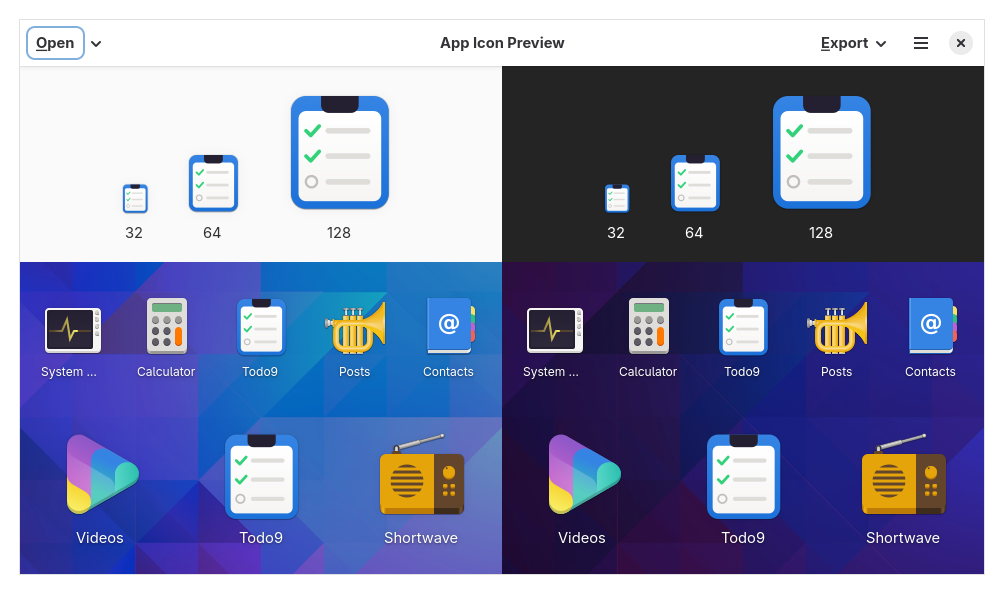
It even allows you to automatically generate a second icon for the development profile.


In the corresponding meson.build file, we then make sure to install the correct icon.
Filename: listings/todo/9/data/icons/meson.build
if is_devel
    icon_name = '@0@.Devel.svg'.format(base_id)
else
    icon_name = '@0@.svg'.format(base_id)
endif

install_data(
    icon_name,
    install_dir: datadir / 'icons' / 'hicolor' / 'scalable' / 'apps',
    rename: '@0@.svg'.format(application_id),
)
GResource Compilation
Instead of glib_build_tools::compile_resources() in build.rs, we now use Meson’s gnome.compile_resources():
Filename: listings/todo/9/data/resources/meson.build
resources = gnome.compile_resources(
    'resources',
    'resources.gresource.xml',
    gresource_bundle: true,
    source_dir: meson.current_source_dir(),
    install: true,
    install_dir: pkgdatadir,
)
The gresource_bundle: true option creates a standalone .gresource file that gets installed to pkgdatadir.
Cargo.toml Changes
The Meson version no longer needs glib-build-tools since resources are compiled by Meson:
cargo remove --build glib-build-tools
Building and Running
Now we can finally install and run the app.
Release Build and Installation
You first have to set up the builddir and then install it with Meson.
On Linux, the default directory might require root access to modify it.
meson setup builddir
meson install -C builddir
Local Installation
For development, it is therefore preferred to install into a local directory.
Make sure that this directory is in your PATH.
If you install into ~/.local like in this example, ~/.local/bin needs to be in your PATH.
meson setup builddir -Dprofile=development --prefix=~/.local
meson install -C builddir
Summary
That was it. The main thing we gained is proper support for icons, GSettings schemas and desktop files. As soon as we add internationalization and publish our package, more advantages will emerge!